Step-by-Step Guide
Parent: How to View Activity Calendar
Learn how to navigate to the students Activity Calendar. This guide walks you through how to view your child's attended activity calendar on Rise for Edu, giving you a clear picture of their participation and activity history.
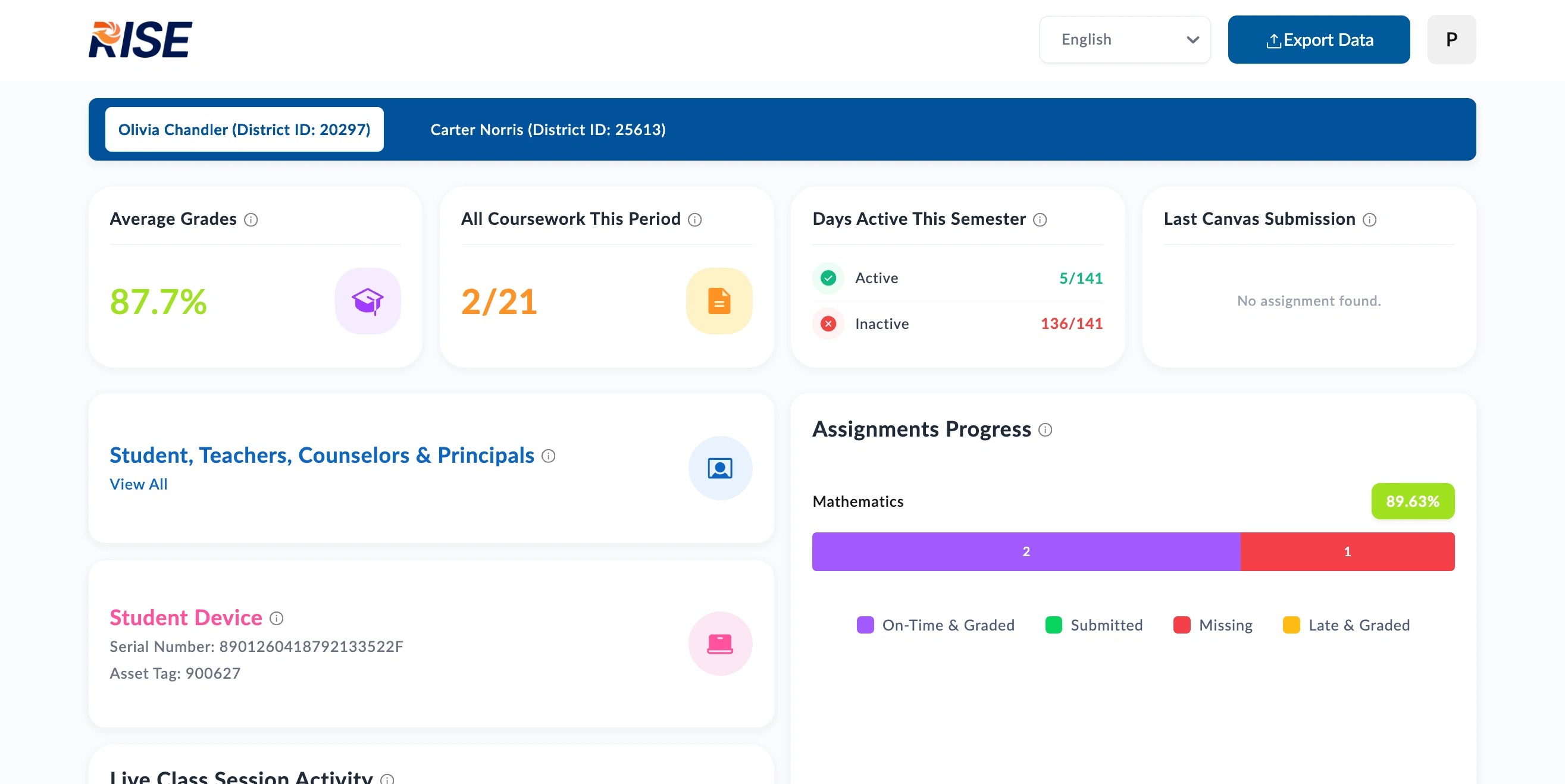
Navigate to www.riseforedu.com
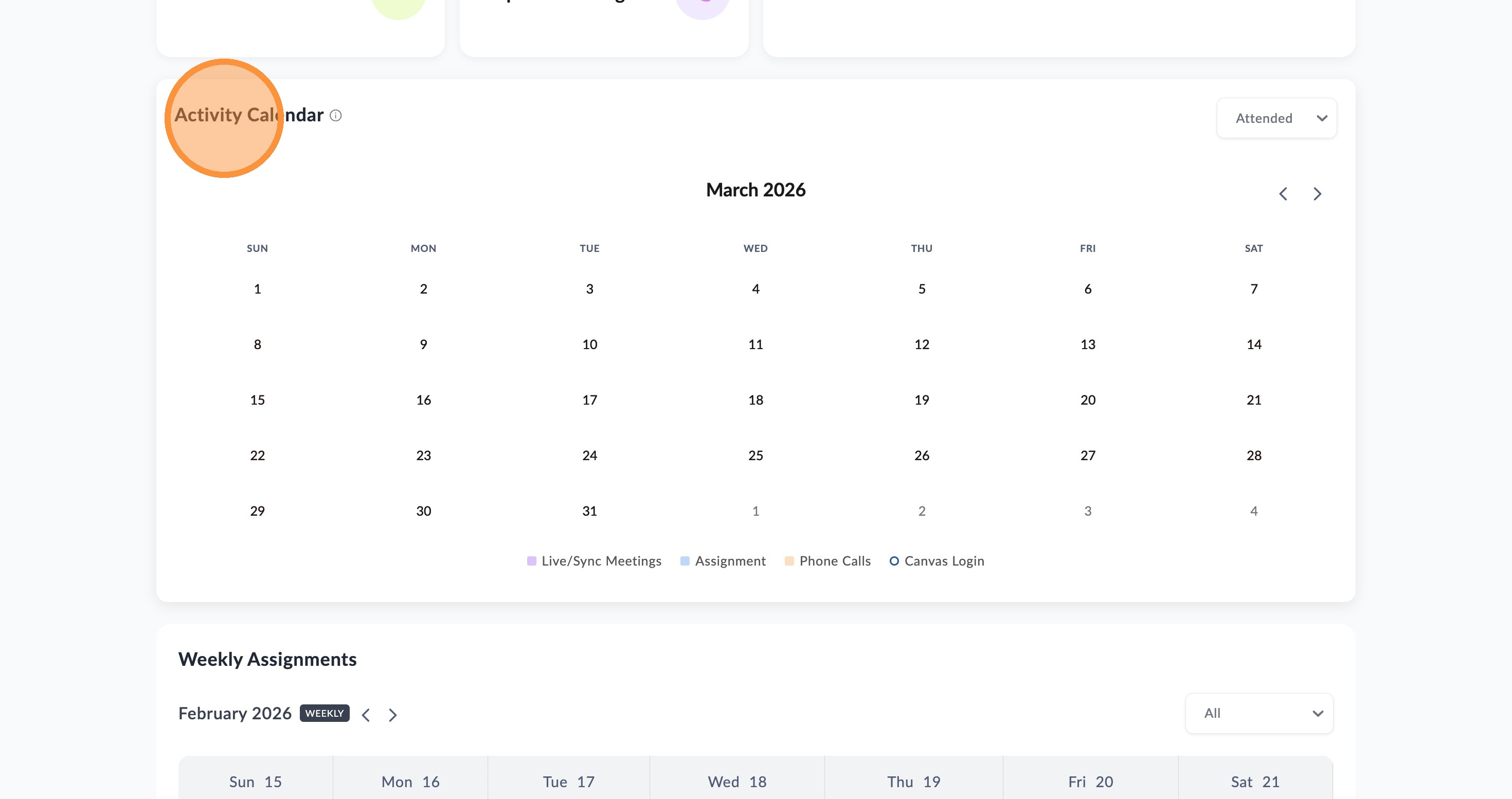
Scroll down to Activity Calendar
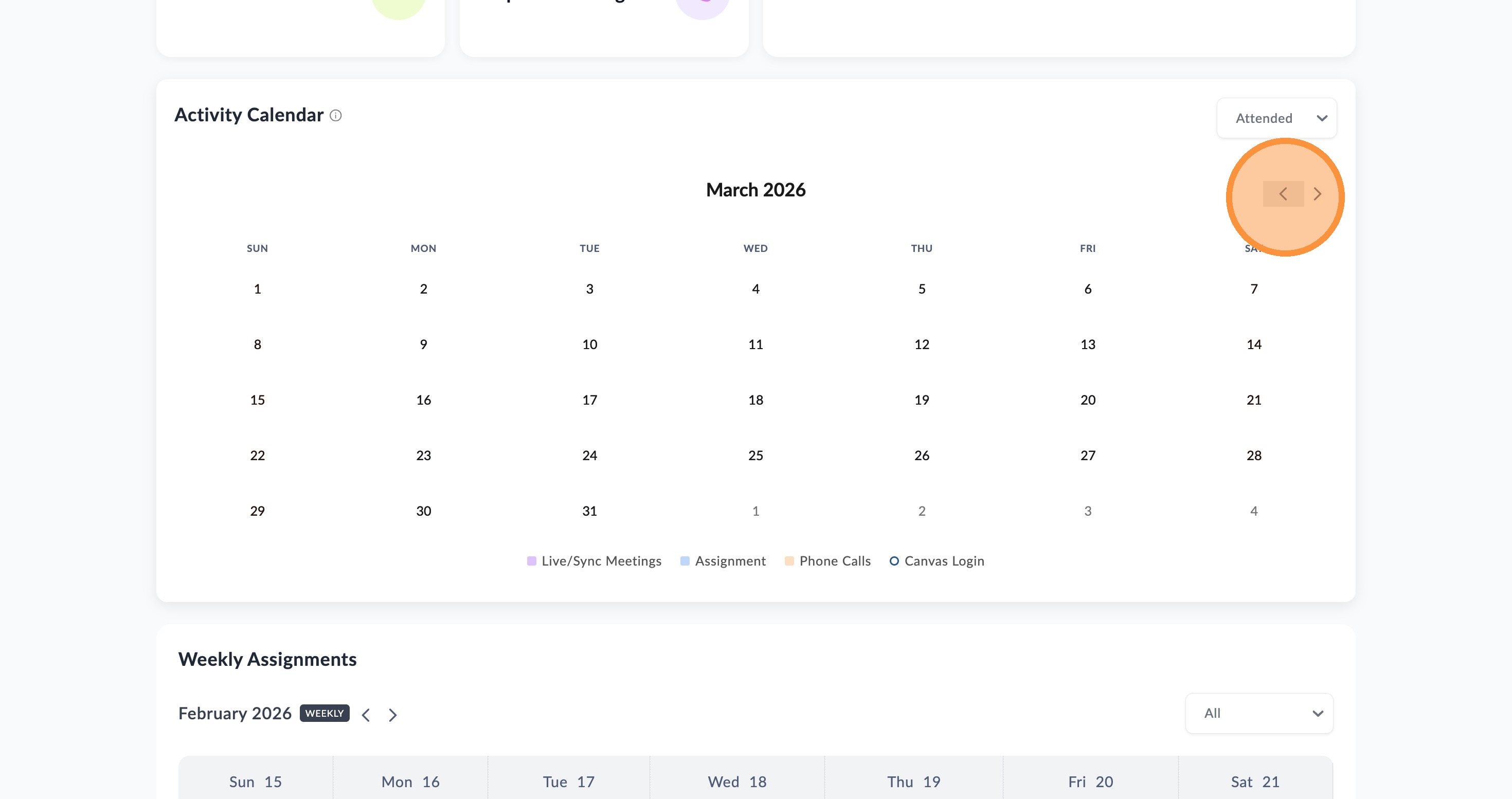
Click arrow icons to view desired month.
Click the dropdown menu to filter the Live Class Attendance days of activity, if the students classes are registered properly with Zoom Classroom it will show results based on your selection.
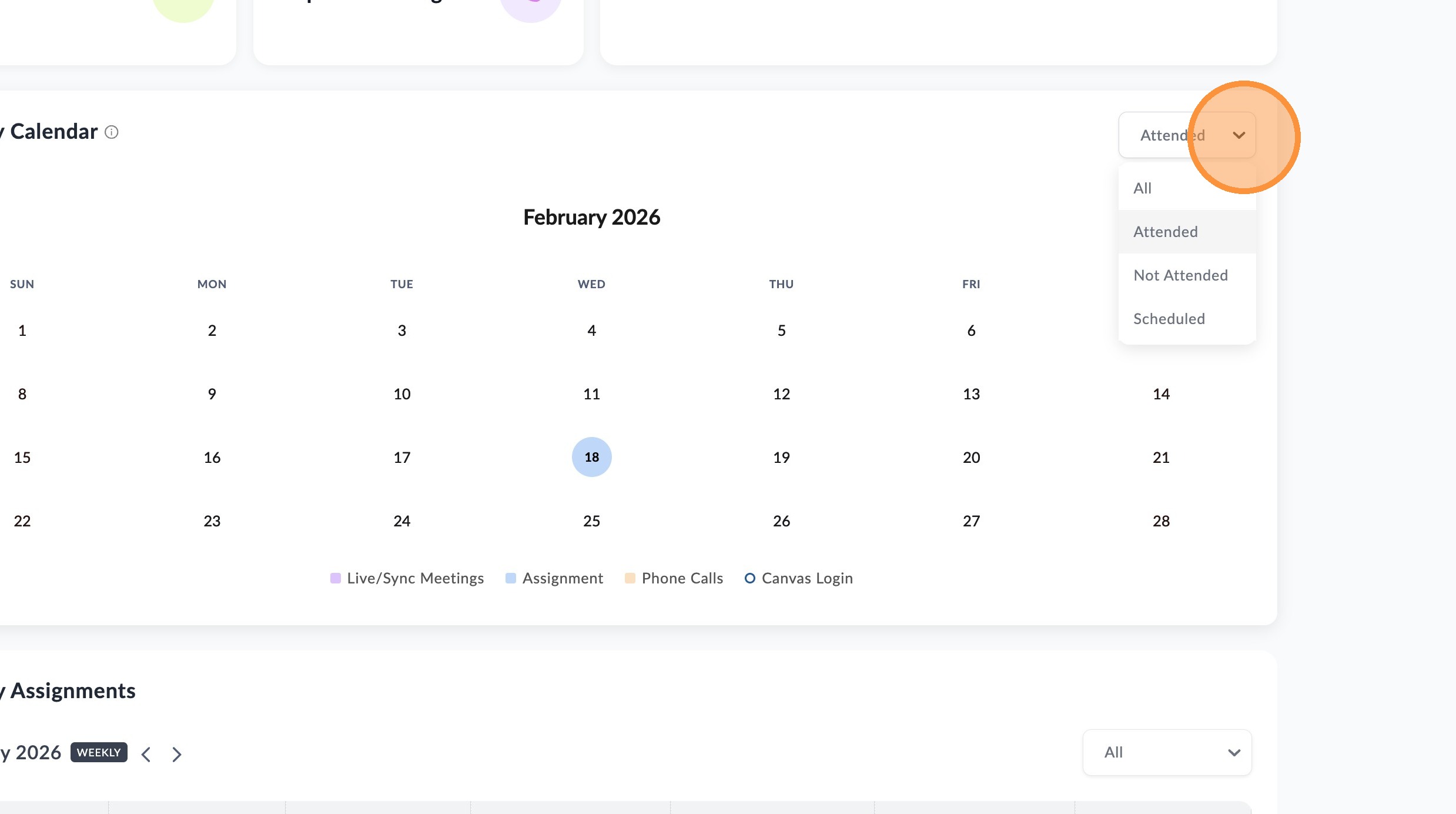
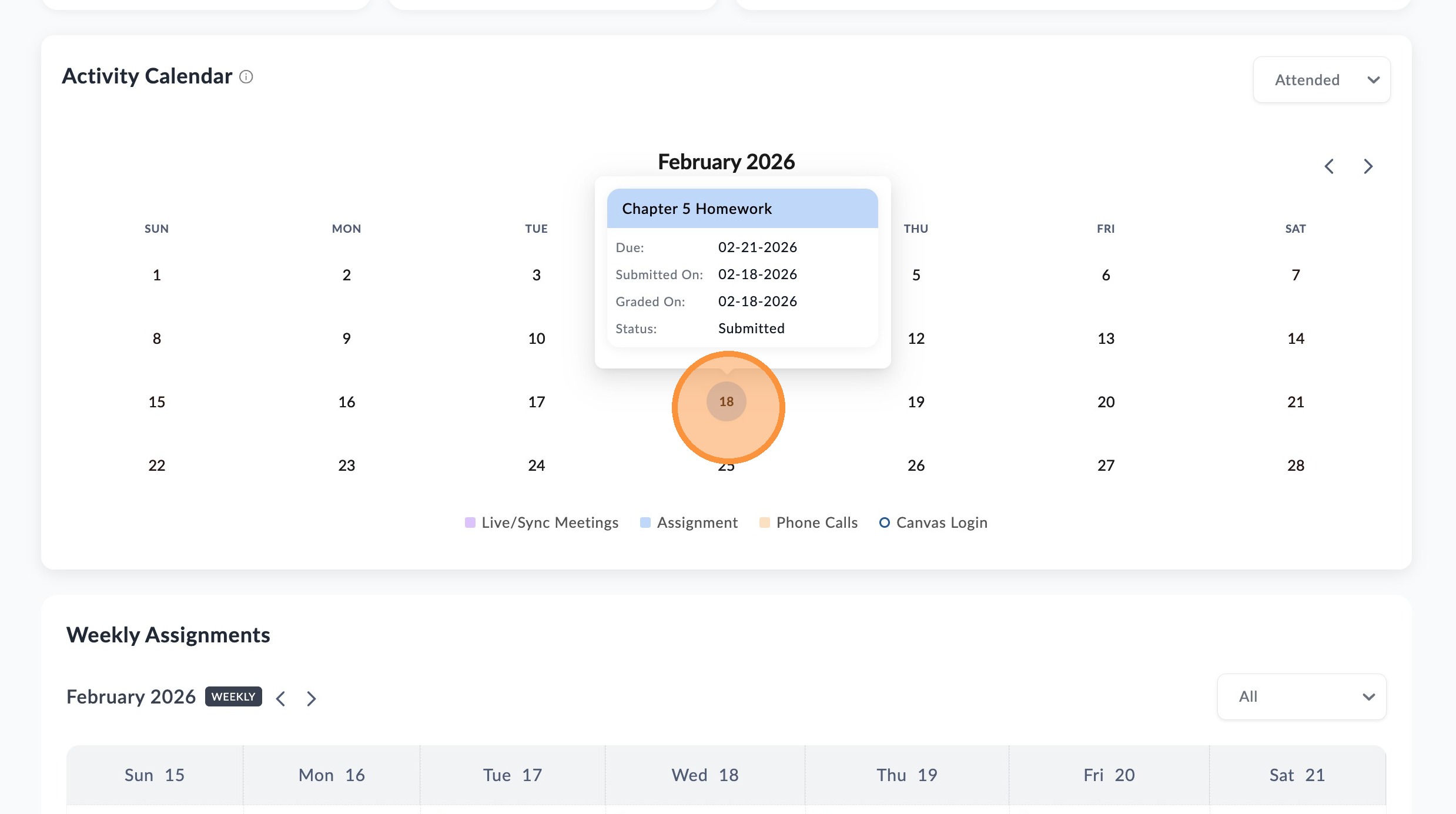
5. Hover over a specific date to view your child's activity details for that day of any activity or assignment they engaged with.
Each date is color-coded for easy reference: purple indicates a live or sync meeting, blue indicates an assignment has been submitted, orange indicates a phone call, and a dark blue outline means your child logged into the Learning Management System on that day.